
| Step One: 1. Swipe up on the main screen and open settings on the Honeywell. 2. Click on Settings | 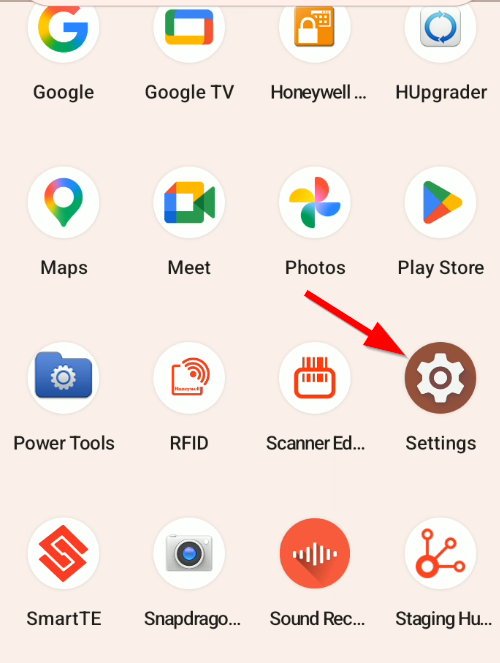 |
| Step 2: 1. Open Honeywell Settings, scroll down to Scanning. 2. Click on Scanning to open the scanner's options. | 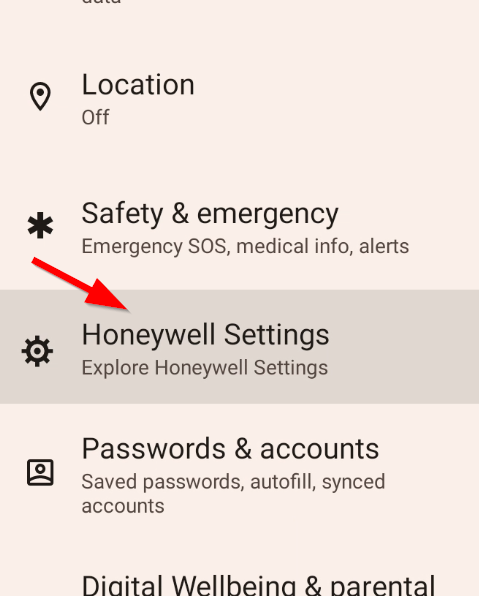 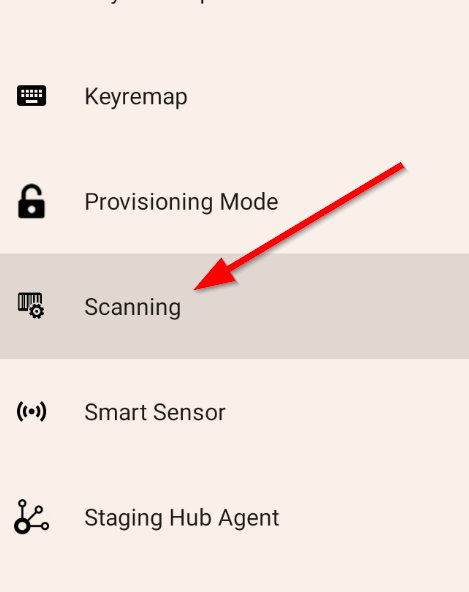 |
| Step 3: 1. Click Internal Scanner 2. Click on Default profile. | 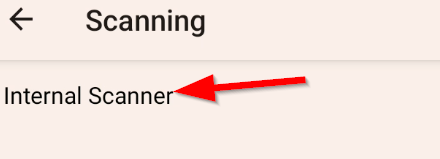 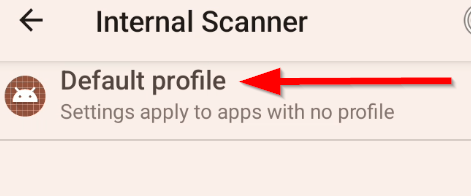 |
| Step 4: 1. Click on Data Processing Settings 2. Ensure that the "Wedge" checkbox is selected. 3. Ensure that the "Wedge Method" is set to keyboard (you can select keyboard from all options by pressing the "Wedge Method" area. 4. Ensure that "Suffix" is set to \x0D\x0A (You can set this by clicking in the "Suffix" area and then entering the aforementioned data string. Those are zeros, not o's). 5. Ensure that "Wedge as Keys" is set to 9,10,11,13 6. Click on the back arrow at the top of the screen to return to the Default scanning profile. | 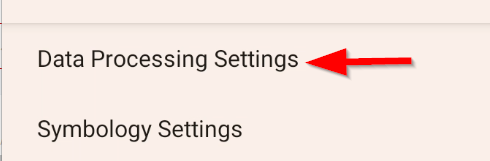 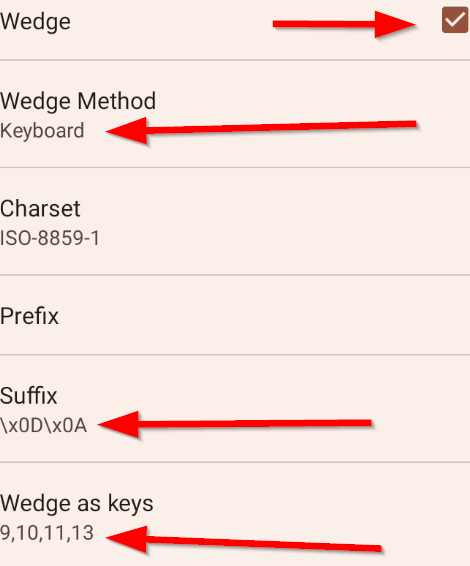 |
| Step 5: 1. Click on Symbology Settings 2. Ensure that "UPC-A" , "UPC-E", and "MSI" are checked. 3. Click on the "UPC-A" area, ensure that the "send check digit" box is also checked. 4. Click the back arrow at the top of the screen to return to Symbology settings. 5. Click on the "UPC-E" area, ensure that both the "Expand to UPC-A" and the "Send check digit" boxes are checked. 6. Click the back arrow at the top of the screen to return to Symbology settings. | 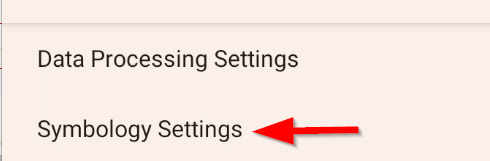     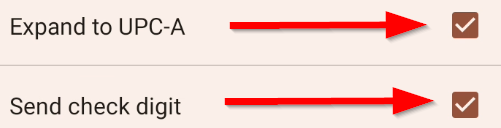 |
| Step 6: 1. Make sure to restart the Pepper App to ensure that the settings are applied to the app. 2. Check functionality by scanning both UPC and shelf tags. | |
 | |
Configuring Honeywell Scanner Settings for Optimal Performance - Step-By-Step Print
Created by: Eddie Murray
Modified on: Mon, 30 Mar, 2026 at 4:25 PM
Did you find it helpful? Yes No
Send feedbackSorry we couldn't be helpful. Help us improve this article with your feedback.