
To write a credit: | |
| 1. By using the chooser, you can select the appropriate store. 2. Then search or scroll down to account/store you need to write a credit for. |  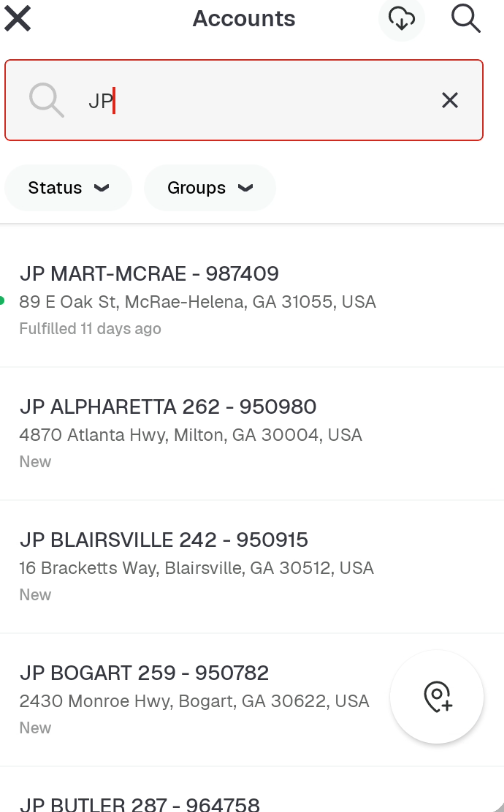 |
| 3. Click the Dash [-] in the search bar and select Credit request scan in the menu at the bottom of the app. |  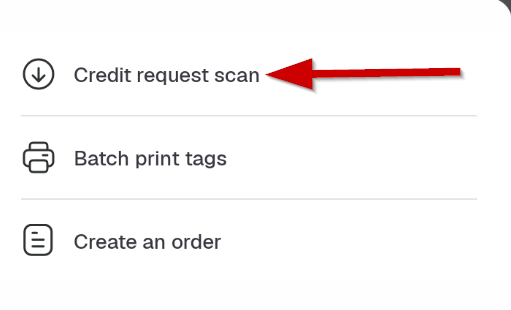 |
| 4. At this point, you can scan UPC, tags, or search for items. | 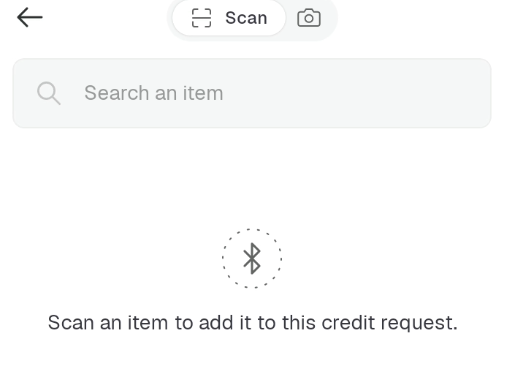 |
| 5. Once you have an item selected you'll need to make sure that the item is Guaranteed and has been fulfilled. Then click on the item to bring up the details section of the credit request. | 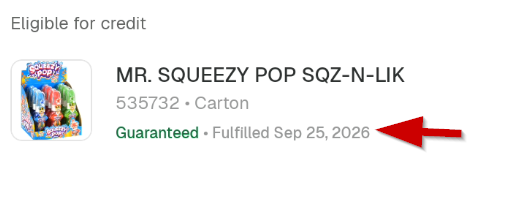 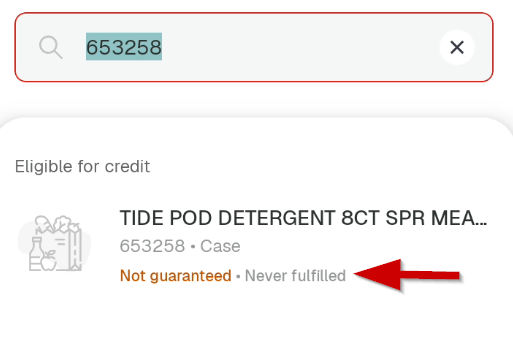 |
| 6.Once you are at the details section, select the reason code. | 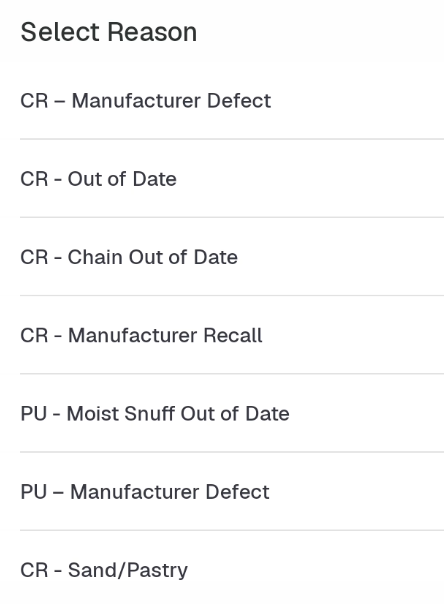 |
| 7. Leave the "Don't link to an invoice" selection as is |  |
| 8. Select the Unit (Carton or Each) and enter the number of items to return using the plus (+) or minus (-) buttons. Once you have added all the appropriate items, click the Done button at the bottom of the app | 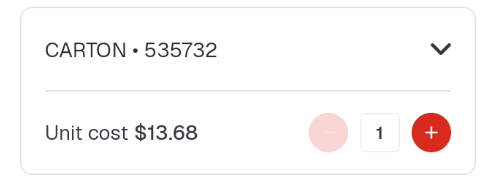 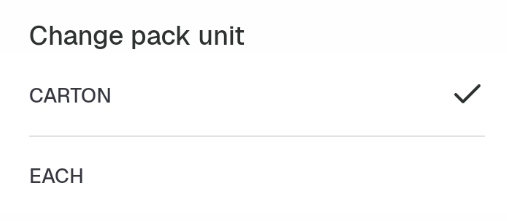 |
| 9. Once you are finished and ready to send the request, click the Send credit request button at the bottom of the app. | 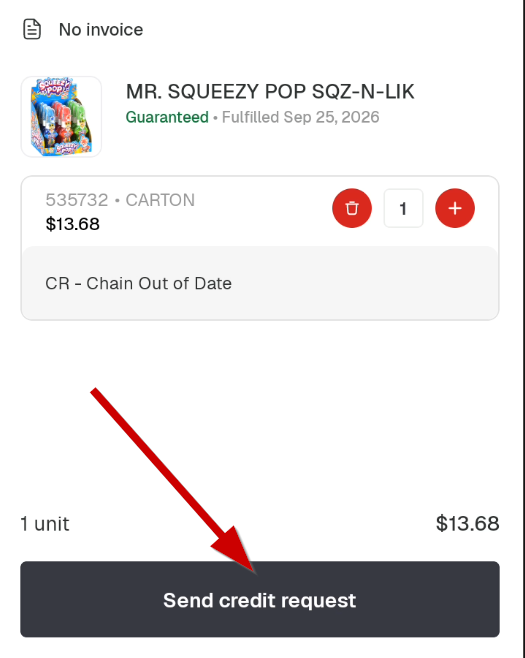 |
| To print a credit reciept: | |
| 1. Go back to main scree (if not already taken there), and click on the Orders tab at the bottom of the app. | 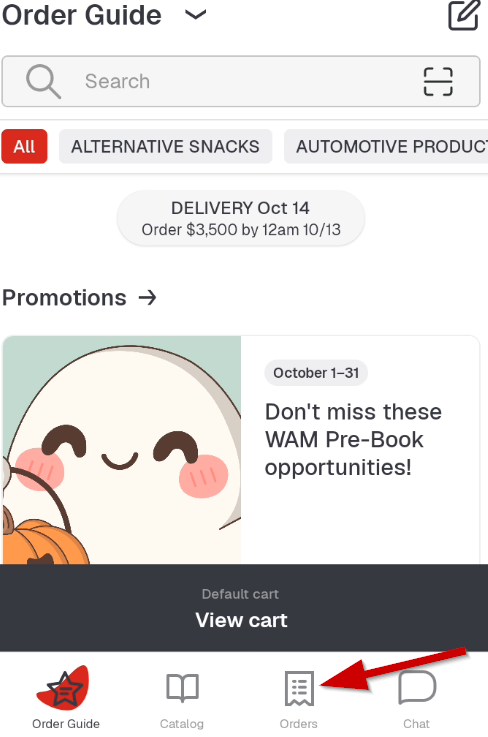 |
| 2. Then click on Past orders at the top. 3. Select Credit Requests to display the credit request you have just created. Click on that request to move to the printing phase. | 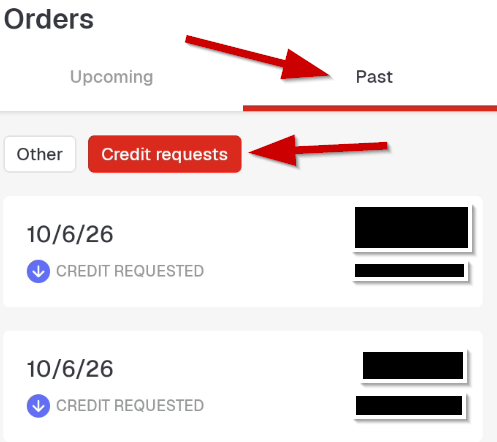 |
| 4. Making sure that your units and totals are correct, click on the three vertical dots in the top right corner of the app. |  |
| 5. In the sub menu at the bottom of the app, click send to mobile printer and it should print out a credit receipt. |  |
 | |
Writing Credits Print
Created by: Eddie Murray
Modified on: Tue, 6 Oct, 2026 at 4:08 PM
Did you find it helpful? Yes No
Send feedbackSorry we couldn't be helpful. Help us improve this article with your feedback.