
| 1. Navigate to Account Selection. | 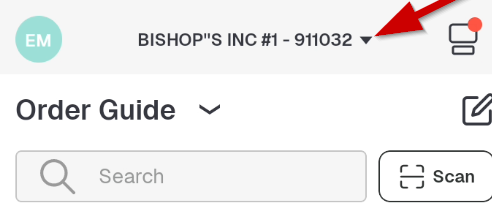 |
| 2. Find the account and slide to the left, then select "Manage Account" | 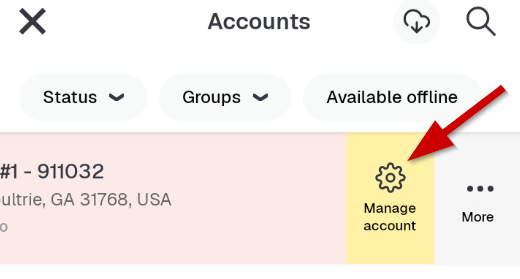 |
| 3. At the bottom of the app, you will see the employees icon. Click on that icon. | 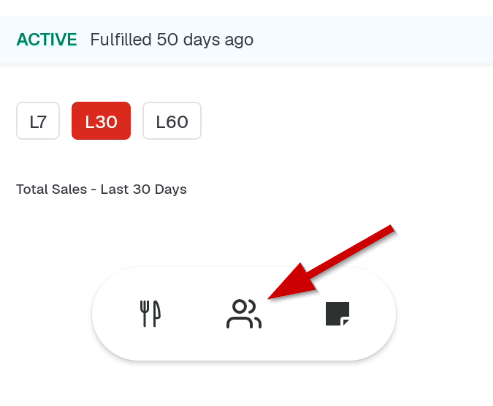 |
| 4. Once inside the employees section, select the employee you want to edit. Once you have selected the employee click on the three horizontal dots in top right-hand corner. | 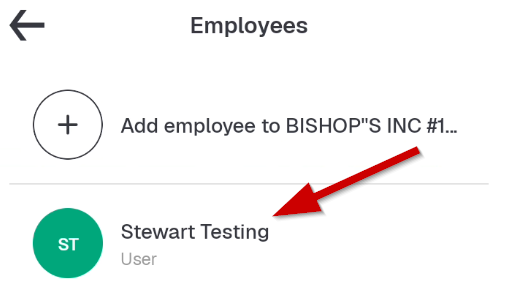 |
| 5. Click on "Update Employee" *DO NOT click on "Remove Employee" unless you are removing them from the store/app. | 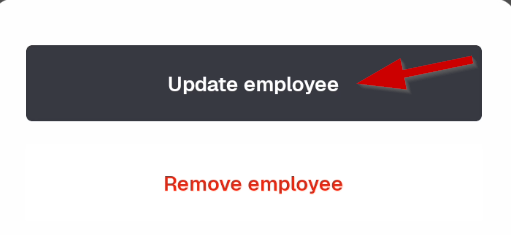 |
| 6. Make your changes, then click "Update" | 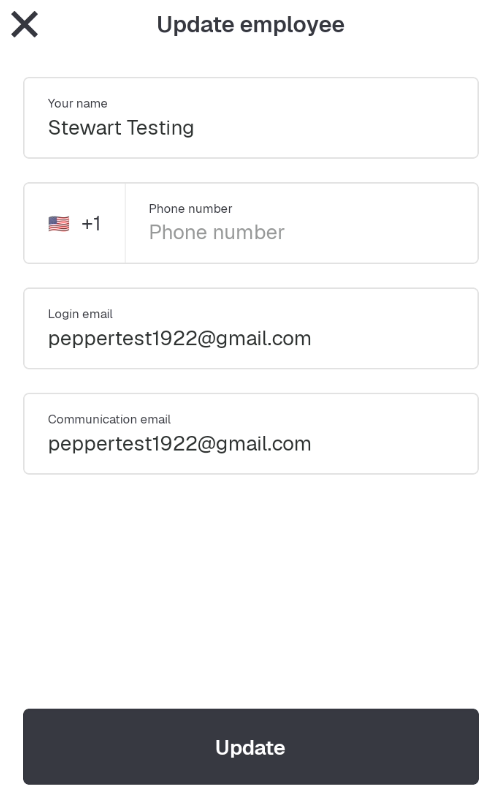 |
| 7. If you need to give an employee the ability to add other employees, click the "Admin Access" button to grant that right. |  |
 | |
Editing a User in the Pepper App Print
Created by: Eddie Murray
Modified on: Wed, 21 Oct, 2026 at 4:23 PM
Did you find it helpful? Yes No
Send feedbackSorry we couldn't be helpful. Help us improve this article with your feedback.